
Project Setup
Set up a Tester.Army project with GitHub App integration and deployment provider configuration.
Use this guide when you want to connect a repository and wire GitHub + your deployment provider into your testing workflow.
Before you start
- You must be signed in to Tester.Army.
- Connect your GitHub account in Tester.Army before starting.
- Your GitHub account must have access to the target repository.
1) Create the project
- Go to Projects in your team dashboard.
- Click New Project.
- Fill in:
- Project Name
- Project URL
2) Connect the GitHub App
This step lets Tester.Army identify PRs for your repository and post test results as PR comments.
- In the GitHub step, if no app is installed yet, click Install GitHub App or open the install page directly: https://github.com/apps/testerarmy/installations/new
- Authorize the app for the org/user and select at least one repository.
- Choose the installation and repository for this project.
3) Connect your deployment provider
Choose your deployment provider below.
Vercel
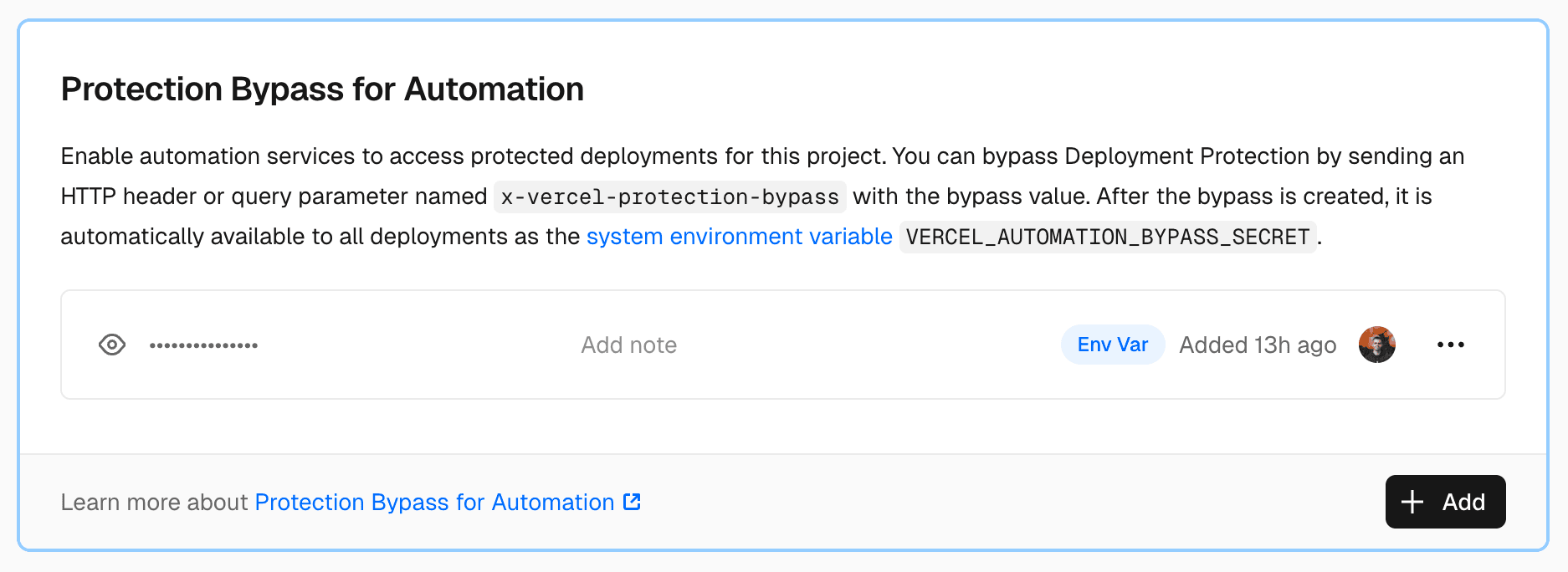
If you use Vercel, TesterArmy automatically receives deployment events through the GitHub App — no webhook needed. You only need the bypass token if Vercel deployment protection blocks preview URLs.
- Open the Vercel token field in the project wizard or later in Project → Settings → Vercel.
- In Vercel, go to:
- Project Settings
- Deployment Protection
- Protection Bypass for Automation
- Create and copy the token and paste it into Tester.Army.
- Click Create Project (or Save in settings).
Coolify
If you use Coolify, TesterArmy receives deployment events via a webhook that you configure in Coolify's notification settings.
- During onboarding, select Coolify as your provider. Or go to Project → Settings → Webhooks and click Add Webhook.
- Copy the generated webhook URL.
- In Coolify, go to Notifications → Webhook, paste the URL, and enable deployment events.
For Docker Compose deployments, Coolify has a known issue where the preview URL is not sent. Configure a Preview URL pattern (e.g., https://{{pr_number}}.myapp.com) when creating the webhook as a workaround.
See CI / CD for more details and troubleshooting.
4) Validate the setup
- Make sure the project appears in your dashboard.
- Open a connected GitHub PR that triggers a deployment.
- Confirm a test run is queued and appears in project results.
- Open the result details for screenshot evidence, issues, and generated Playwright steps.
Quick troubleshooting
- No installations found: install the Tester Army GitHub App on the correct account/org and refresh.
- No repositories available: expand app permissions to include that repo.
- Protected preview cannot open: verify the Vercel bypass token is valid.
- Coolify webhook not triggering: check that deployment events are enabled in Coolify Notifications → Webhook.
Related Guides
- CI / CD for Coolify integration details and troubleshooting.
- Quick Test for one-off checks without project setup.
- API Reference for async run endpoints and webhooks.